
Plugin management
Use View → Plugins… to manage language packages, pitch processors, and score-format adapters.
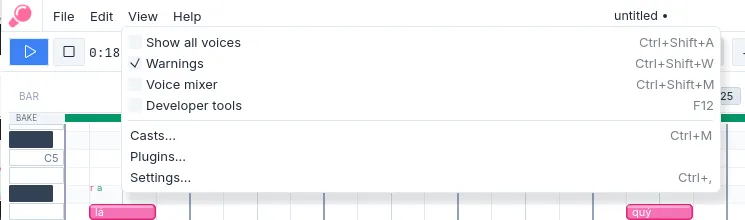
Figure 1. Open the Plugins dialog from the View menu.
Package status
Section titled “Package status”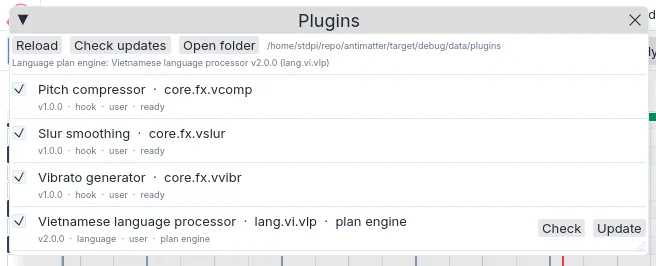
Figure 2. Installed plugin packages and status.
A package may be ready, disabled, or unavailable because its installed entry does not match the checksum declared by the package. A package with a checksum mismatch does not run. Use Reload after installing or replacing a local package.
Multiple language packages may be enabled together. Each voice selects one of their advertised languages from its voice-card context menu, and Amadeus uses the matching package for that voice. If no enabled package supports the selected language, Amadeus cannot create its phoneme plan.
Amadeus includes the Japanese portable CV/VCV/CVVC package lang.ja.contrib.ucv. It is enabled by default and can be selected for voices that use its advertised language support. The Vietnamese language package is also bundled with the application.
Packages built with SDK 1.2.1 require an Amadeus host at beta3 or newer. The host compatibility check runs when the package registers; an older or missing host contract makes the package unavailable rather than allowing it to run with an unknown API shape.
Updates
Section titled “Updates”A package can offer remote updates through its manifest. Check reads its published metadata and reports whether an update is available. Update downloads the package entry and verifies its declared checksum before installation. Review the publisher and version before applying an update.
The dialog distinguishes bundled packages from packages installed in the user plugin directory. User-installed packages take precedence when the identifiers are the same.
| Condition | Action | Result |
|---|---|---|
| A package was copied into the user plugin folder. | Choose Reload. | The dialog rescans the installed packages. |
| A voice’s language is unavailable. | Enable a package that supports it, then select the language on the voice card. | Automatic lyric pronunciation becomes available for that voice. |
| An enabled package reports a checksum mismatch. | Reinstall a matching manifest and entry. | The package can load after verification succeeds. |
| An update is reported. | Review its publisher and version, then choose Update. | The new entry is installed only if its declared checksum is satisfied. |